Applying Object Detection Models
You can automatically segment datasets with any of the object detection models that you trained, imported, or downloaded (see Training YOLOv3 Models for Object Detection for information about training an object detection model).
The following options are available for applying trained object detection models on the Apply tab in the YOLOv3 dialog.
| Description | |
|---|---|
| Model |
Lets you choose the required model.
Note See Apply Tab for additional information about filtering and other options for listed models. |
| Parameters |
Lets you choose the input dataset and other parameters for applying the selected model.
Score… Represents the level of certainty of the model that the box contains an object of interest. Reducing this number will increase the number of boxes generated, although some boxes might be false positives. Increasing the score will decrease the number of boxes that will be detected. IOU… The IOU (Intersection Over Union) is a parameter that regroups boxes that are superposed. Decreasing the IOU regroups more boxes and leads to less boxes. |
| Apply |
Lets you choose how to apply the selected model to the input dataset. The resulting multi-ROI will added to the Data Properties and Settings panel when processing is complete.
Full Dataset… If selected, the full dataset will be denoised. With Mask… If selected, only data within the region of interest selected as the mask will be processed. |
 How to Apply an Object Detection Model
- Choose Artificial Intelligence > Custom Deep Model Architecture > YOLOv3 on the menu bar.
The YOLOv3 dialog appears. All of the trained models appear in the Model list on the Apply tab.
- Filter the model list by entering key words in the Filter edit box, if required.

- Select the model that you want to use.
The items in the Parameters box are activated.
- Choose the dataset that you want to apply the model to in the Input drop-down menu.

- Modify the default Score and/or IOU settings, if required.
Refer to the table Apply options for information about 'Score' and 'IOU'.
- Click the Apply button and then choose how you want to apply the model — to Full Dataset or With Mask.
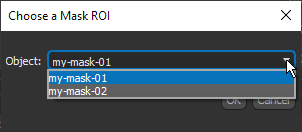
Note If chose to apply the model with a mask, you will need to choose a mask in the Choose a Mask ROI dialog, as shown below.
The selected model is loaded and then applied. When processing is complete, a new multi-ROI appears in the Data Properties and Settings panel.
